3D Body Scan App: Scan Your Body With Your Phone
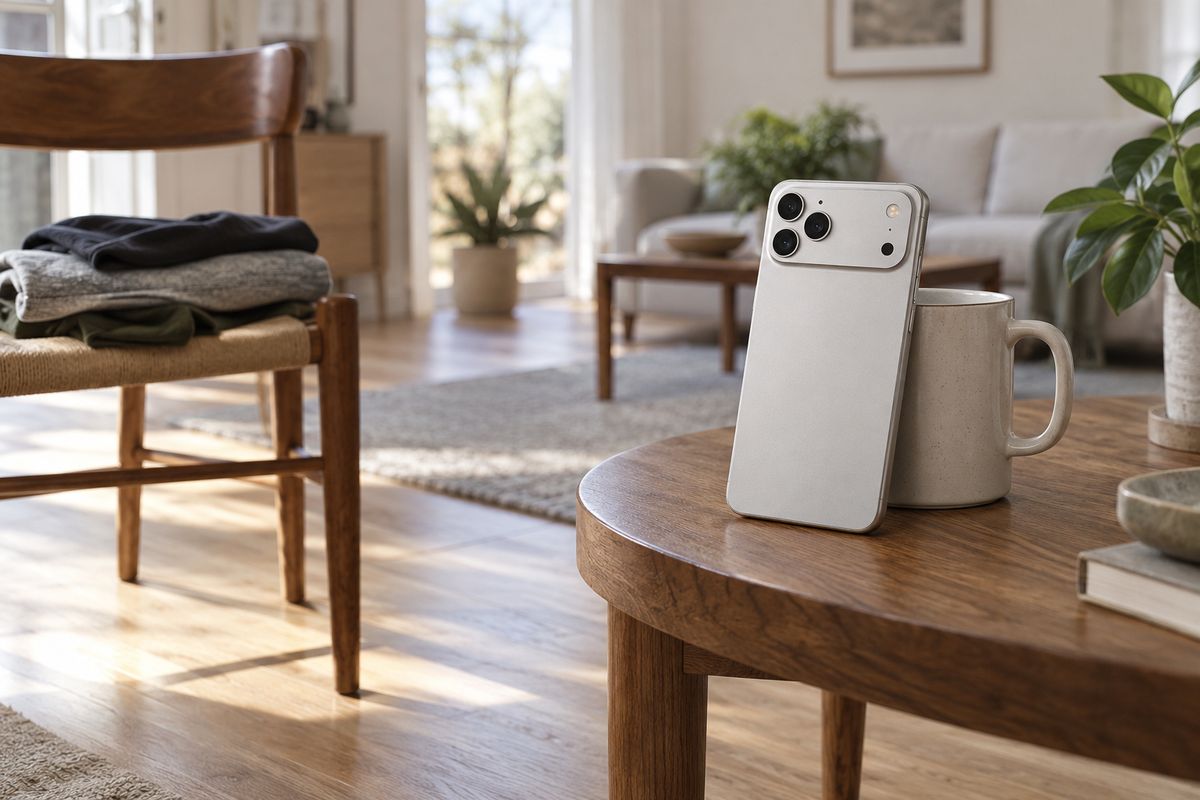
A 3D body scan in PlateLens takes one guided turn in front of your phone and builds an interactive 3D model of your body with estimated measurements. It runs in the PlateLens app on iPhone and Android. Save each scan, track your progress, compare two scans, set measurement goals and export a PDF report.
What a 3D body scan on your phone gives you
A 3D body scan turns a guided capture into a model you can look at from every side. As you turn in front of your phone, the camera takes one photo at each of twelve clock positions, and PlateLens builds an interactive 3D model of your body from them, together with your measurements.
The result opens on your phone in Measurements. Tap a measurement on the model or in the table to open its detail, drag left or right to rotate the body, or choose Front, Side or Back to turn around the area you selected. Body scan measurements include values such as chest, waist and hips, and the table button keeps every available measurement within reach. The scan menu switches the display between cm and in and shares an image of your scan.
Because every finished scan is saved to your account, one scan becomes the start of a record you can build on:
- Save your scans in a history you can reopen from the app.
- Track your measurement progress by following any available measurement over time.
- Compare two scans side by side or as a map of change.
- Set measurement goals for the measurements you want to follow.
- Export a PDF report of a scan or a comparison, and save or share it.
How to take a 3D body scan with your phone
The scan lives in the PlateLens app on iPhone and Android, and the app guides you through phone placement and the turn with on-screen checks and a voice. In short:
- Open the scanner. Go to + → Wellness → 3D Body Scan, choose Get started and check the sex, height and weight filled in from your profile. Allow camera access when asked and set the phone volume so you can hear the spoken guide.
- Watch the tutorial. Photos, captions and narration cover clothing and posture, phone placement and the clock turn.
- Place the phone. Stand it upright on a steady support at about waist height, with the screen and front camera facing you and room to step back. A live level shows what to adjust and checks that the phone is steady.
- Dress and frame yourself. Wear close-fitting sports clothes, take off your shoes and tie back long hair. Use even lighting and a clear background, and keep your head and feet visible, with your arms lowered and slightly away from your body.
- Start the scan. Face the phone at twelve o’clock. When your position passes the checks, the voice counts 3, 2, 1 and the camera confirms each photo with a sound.
- Follow the clock. The voice asks you to turn a little at a time, to one o’clock and onward through eleven, and the camera takes each photo for you. The clock gives approximate directions.
- Keep PlateLens open until the upload finishes. After the last position, the app sends the selected images to PlateLens’s server for processing.
Measurements are estimates; passing the fit checks does not guarantee accuracy. The Use 3D Body Scan guide covers each check in detail, including what to adjust when the app asks for a different position.
What happens after the scan
When the capture ends, the app may ask whether to add the weight entered for the scan to your weight history, and then uploads the selected images to PlateLens’s server. Keep PlateLens open with an internet connection until the upload finishes. After that, processing continues on the server, so you can leave the app: with notifications allowed for PlateLens on your phone, you get a notification when your scan is ready, and tapping it opens the scan.
The processing screen follows your scan with one progress bar and names real stages, such as analyzing images and aligning views. Continue in background opens your scan list, where the scan appears under In progress until it is ready. The finished scan then saves itself to More → 3D body scans, with its measurements and its finished 3D shape.
On privacy, scan photos are securely processed on PlateLens servers and automatically deleted after processing. The saved scan keeps your measurements and the finished 3D shape, and deleting a scan removes it from your account. The guide explains what is saved and what is temporary.
Track your body measurements: compare scans and set goals
Open More → 3D body scans to see your saved scans in one list, grouped by month, with the newest marked Latest. Each card shows the date, the time and measurements such as lower waist, chest and hips, and when an earlier compatible scan exists, its signed change appears beside the measurement. A Home card shows your latest scan and opens the list.
To compare two scans, choose … → Compare scans, select the two scans, check their Before and After dates and tap Compare. Inside a saved scan, … → Compare with… opens a chooser for the second scan. The comparison opens in Progress, which maps the change in compatible measurements onto the body. Switch to Side by side to see the earlier scan on the left and the newer one on the right, or to Overlay. The sign always describes the change from the earlier scan to the newer one.
Goals work from a saved scan. Open a measurement and tap Set a goal, or open … → Goals, then move the slider or enter a target in your display units. The trend then shows a dashed goal line next to your actual scan points. You can edit the goal for a measurement or end it and create a new one.
For a copy to keep, … → Export PDF offers the individual scan or, when a compatible reference exists, a comparison, and the preview lets you save or share the file.
How often to scan
Body changes do not show from one day to the next, and real progress builds up over weeks. Scanning more often adds noise rather than information.
Read the change in the Progress view across weeks. How your scan allowance works is in the full guide.
Where the 3D body scan app runs and what each plan includes
The camera scan runs in the PlateLens apps for iPhone and Android. Download PlateLens from the App Store or Google Play, then open + → Wellness → 3D Body Scan. Your scans are saved to your account and listed under More → 3D body scans.
Each plan includes a 3D body scan allowance. See pricing for what each plan includes, and the Use 3D Body Scan guide for the allowance, notifications, retries and troubleshooting. Measurements are estimates, and this article is general information, not medical advice.
Frequently Asked Questions
Is there an app that makes a 3D body scan with your phone?
Yes. PlateLens includes a 3D body scan in its iPhone and Android apps. You set your phone on a steady support, follow a guided turn in front of the camera, and the app builds an interactive 3D model of your body with estimated measurements. Each finished scan is saved, so you can track measurement progress, compare two scans, set measurement goals and export a PDF report.
How accurate is a phone body scan?
PlateLens measurements are estimates, and passing the fit checks does not guarantee accuracy. On your phone, the app guides your setup with level and position checks and a voice-led turn. To follow your progress, take each scan under the same conditions and read the change over weeks rather than days. This is general information, not medical advice.
Do I need special equipment to scan my body with my phone?
You need your phone on a steady support at about waist height and close-fitting clothes; a special stand is not required. The phone stands upright with the front camera facing you, and the tutorial shows a phone supported by a mug as an example. The app guides you through the scan with a level check, a voice and a clock-style turn, and the camera takes the photos for you, with no shutter to press.
Does the 3D body scan work on Android?
Yes. The 3D body scan works in the PlateLens apps for iPhone and Android, and the camera scan runs in those apps. Open + → Wellness → 3D Body Scan, follow the guided steps, and your finished scans are saved under More → 3D body scans, with their measurements, progress, comparisons, goals and PDF export.
Where do my scan photos go?
Scan photos are securely processed on PlateLens servers and automatically deleted after processing. The saved scan keeps your measurements and the finished 3D shape, and deleting a scan removes it from your account. The Use 3D Body Scan guide explains what is saved, what is temporary and how deletion works.
How do I compare two scans?
Open More → 3D body scans, choose … → Compare scans, select the two scans you want, check their Before and After dates and tap Compare. The comparison opens in Progress, and you can switch to Side by side or Overlay. From inside a saved scan, … → Compare with… opens a chooser for the second scan. You need two completed, compatible scans.
Where this comes from
- The PlateLens guide Use 3D Body Scan: setup, what is saved, comparison, goals, PDF export, the scan allowance, notifications and privacy details.
- The App Store release notes of PlateLens version 1.14.14 (September 27, 2026), which introduce the 3D Body Scan.