Portions by Weight or Volume in PlateLens
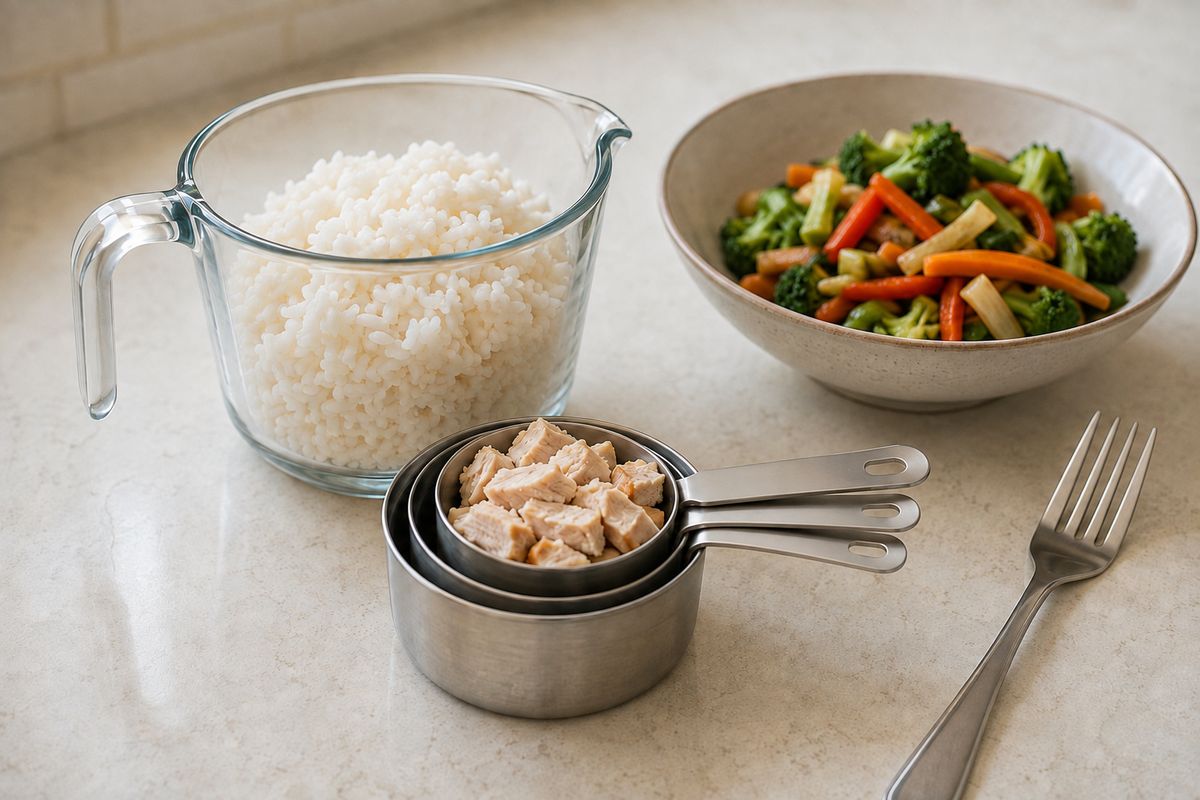
Sometimes you count slices. Sometimes you weigh lunch or measure what you pour. PlateLens now lets you use that amount to set a meal's portion: keep Portions, or use Weight or Volume when the meal has the information needed. The same controls are available on mobile and web.
Use the measurement you already have
If your kitchen scale gives you a weight, translating it into a fraction of an estimated portion adds work. An amount field lets you enter the measurement directly. PlateLens uses it to scale the meal's calories and nutrients together, so you can adjust how much you ate without describing the meal again.
Portions still make sense when you counted a food's units or ate part of a meal. Weight and volume give you another way to express the amount when you measured it.
The amount option follows the food
The editor offers Portions plus an amount option when the meal supports one. A meal with usable ingredient weights offers Weight. A meal with a recorded volume offers Volume instead, even when it also has ingredient weights. If neither is available, you can use Portions.
Volume belongs to drinks, liquid foods, soups and oils or sauces logged by capacity. For soup, it describes the whole bowl, including the solids. Ordinary solid foods and mixed plates do not get a volume control. Your profile's unit system determines whether you see grams and millilitres or ounces and fluid ounces.
A measured amount still starts from an estimate
The ingredient weights and volume in an analyzed meal are estimates. Entering a weight from your scale changes the amount used to scale that meal; it does not independently verify the food, its ingredients or its nutrition.
That is why Fix it remains useful. If the food itself is wrong or an ingredient is missing, a correction re-runs the analysis. Changing the amount and correcting the meal answer different questions: how much you ate, and what you ate.
Barcode amounts follow the product's own label
Packaged foods have their own serving and nutrition information. A declared serving opens in Servings. If there is no declared serving but the catalog has a nutrition panel per 100 g or per 100 ml, the amount mode opens instead. A package size is never assumed to be a serving.
The preview scales to your amount only when the product's own panel supports the conversion. Otherwise, the nutrition is shown as a reference. Grams and millilitres are never treated as interchangeable.
The same choice where you edit meals
| Surface | What you can do |
|---|---|
| iPhone & Android | Edit a meal with Portions and the Weight or Volume option that its recorded information supports. |
| Web app | Use the same portion and amount controls, in your profile's units. |
| Saved & recent meals | Use the same amount control when the entry carries a usable weight or volume. |
| Apple Watch | View portions. Use the phone or web to edit a logged meal's portion by weight or volume. |
Your existing meals keep working
Meals logged before this change still support portions and weight editing when usable weights are available. Volume becomes available after a correction re-analyzes a suitable meal. You can keep using your diary and choose the measurement that fits the next meal you log.
Set the portion the way you measured it
The support guide covers the controls, barcode amounts, corrections and what happens when you remove an ingredient.